
GRLife Pro 2.1 is back: the live view no longer freezes after a film change
First, a note: after yesterday’s 2.1 went out, we found it still had a bug that could freeze the live view after a film change, so we rolled the store back to 2.0 the same day. That bug is now fixed and 2.1 is available again. If you already updated to 2.1 yesterday, please update once more with the steps below.
This time we found the real cause: pressing OK for GRLife Pro right after turning the camera on (before any menu or the ADJ strip had been opened), then changing a film or a setting, froze the live view on the way back to shooting. No focusing, no shooting, and only turning the camera off brought it back. The new build has been tested over and over on the camera without it happening again.
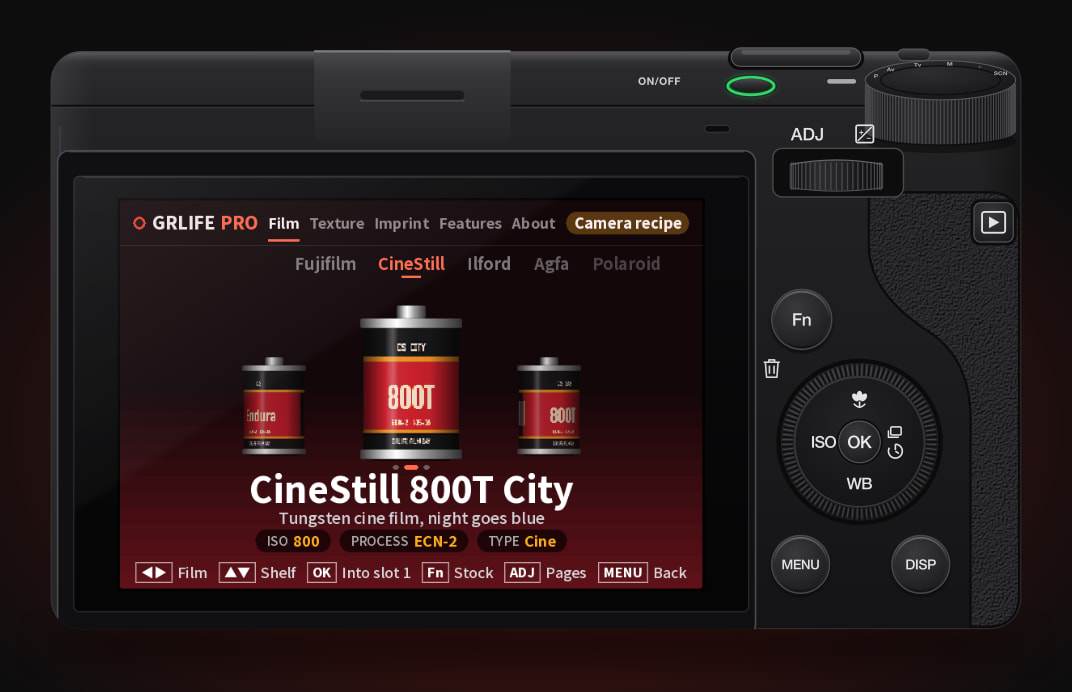
What changed
- OK right after power-on no longer freezes: GRLife Pro opened straight from the live view and skipped the preparation the camera does before opening its own menus. Now the first OK after power-on goes through the camera’s own steps first and then opens GRLife Pro; it looks the same as always.
- Texture settings are kept: Film grain, HDF diffusion and film softness set on the Texture page no longer go back to their earlier values after a restart.
- Straight back to shooting: OK on a film now goes back to shooting at once; the canister drop animation is gone.
- Texture closed on the camera recipe: With the camera recipe in use, film grain, HDF diffusion and film softness show “—”: they only work with a film.
How to update
- Open GRLife Pro 2.0 in the store, generate the firmware again from the official firmware and download the new ZIP.
- Flash the new firmware as the chart on the page shows.
- Copy GRLPRO.GRP from the ZIP’s GRLIFE folder into the GRLIFE folder on the card, replacing the old one. Keep the FILMS.GRF already on the card; don’t replace it with the one in the ZIP, which only has the five built-in films.
- Turn the camera on and wait about 10 seconds while it copies the new app. Press OK to open GRLife Pro: the About page shows GRLife Pro v2.1.
The version is still v2.1, so even if you updated yesterday, generate and flash today’s firmware again. The fix is in the firmware; replacing GRLPRO.GRP alone is not enough. Still on v1.4x? The same steps take you straight to 2.1. Sorry for the extra trouble.
Open GRLife Pro 2.0 in the store
This post was first sent by email to GRLife users. To get the next one, sign in and turn on email notifications in Account settings.