
Instructions
Custom firmware, the film library and the shutdown screen each have a guide. Start with the one for what you want to do. GRLife is an unofficial tool, not affiliated with Ricoh; building firmware needs an internet connection and sends only the official firmware’s checksum (SHA-256).
Choose what to do
-
GRLife Pro 2.x
The new in-camera app: press OK on the shooting screen and films, texture, imprint and every feature are there. This guide covers getting it, installing it, first use and its five pages.
Read the GRLife Pro 2.x guide -
Custom firmware
Back up the camera files, build custom firmware online and flash it; flash the official firmware back when you need to.
Read the custom firmware guide -
Film Library
Once the custom firmware is flashed, download the film library file with your device code, copy it to the SD card and swap films on the camera.
Read the film library guide -
My films
Turn your own .cube LUT, or a colour chart processed in any photo app, into a camera film, save it to your account and put it in the camera with the film library.
Read the “My films” guide -
Shutdown image
With GRLife Pro installed, turn your own photos into shutdown screens on the SD card and switch them in the camera menu.
Read the shutdown image guide
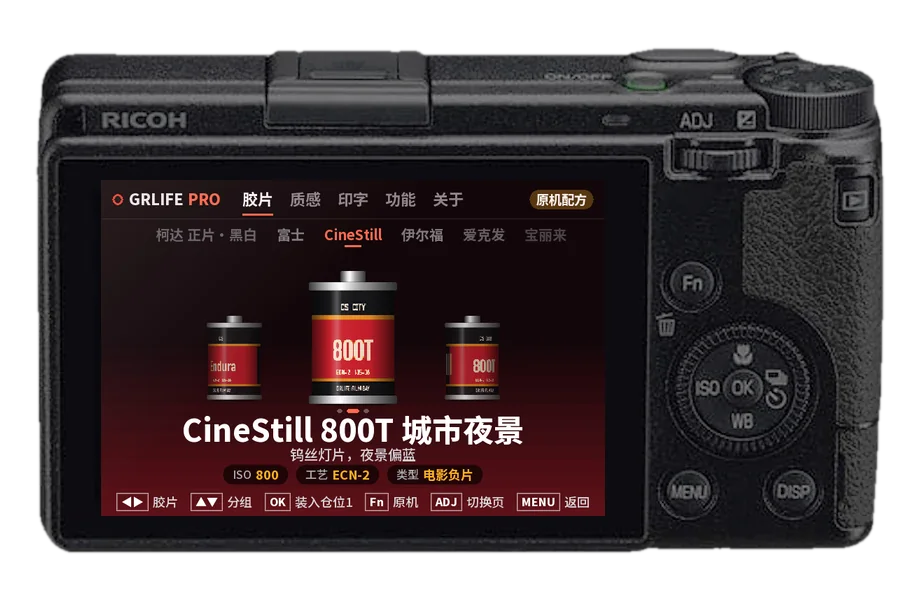
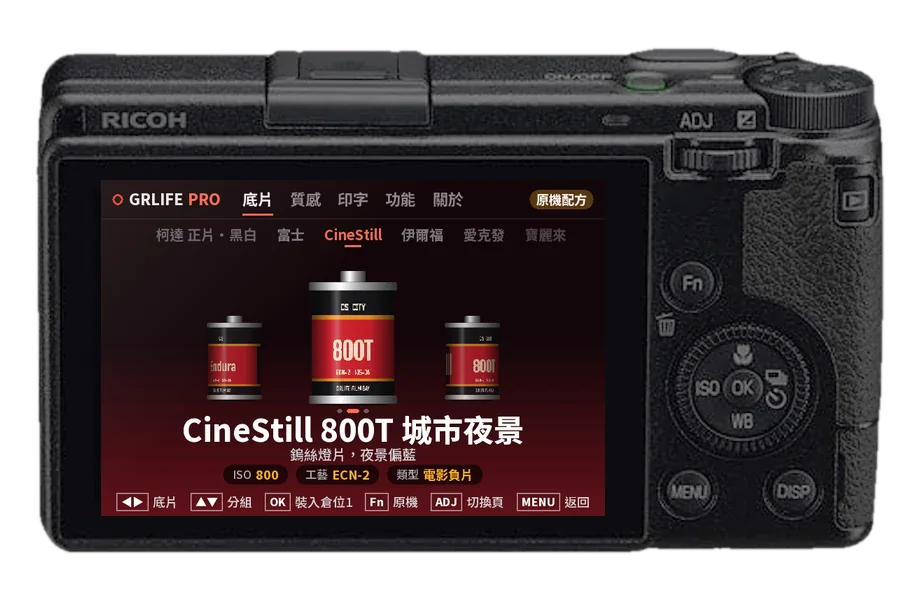
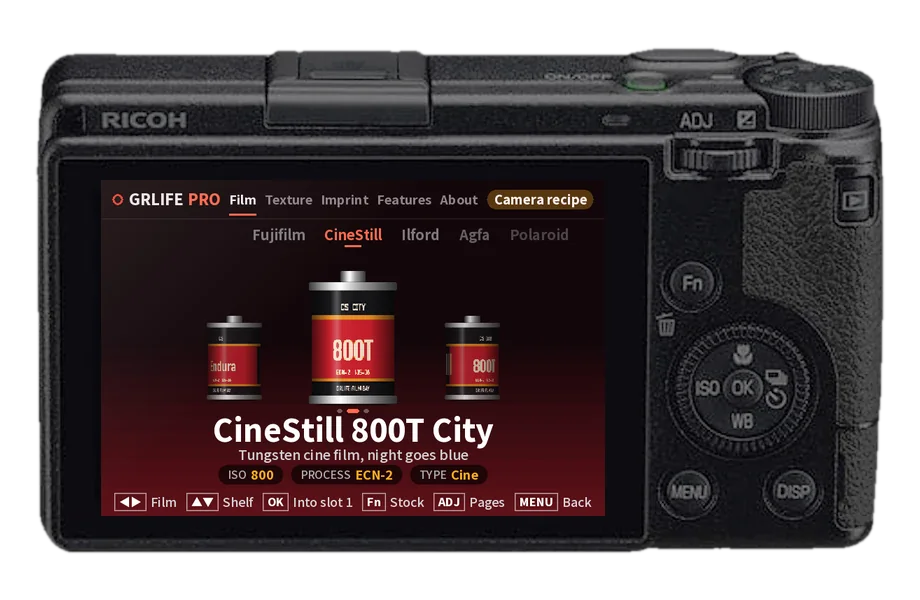


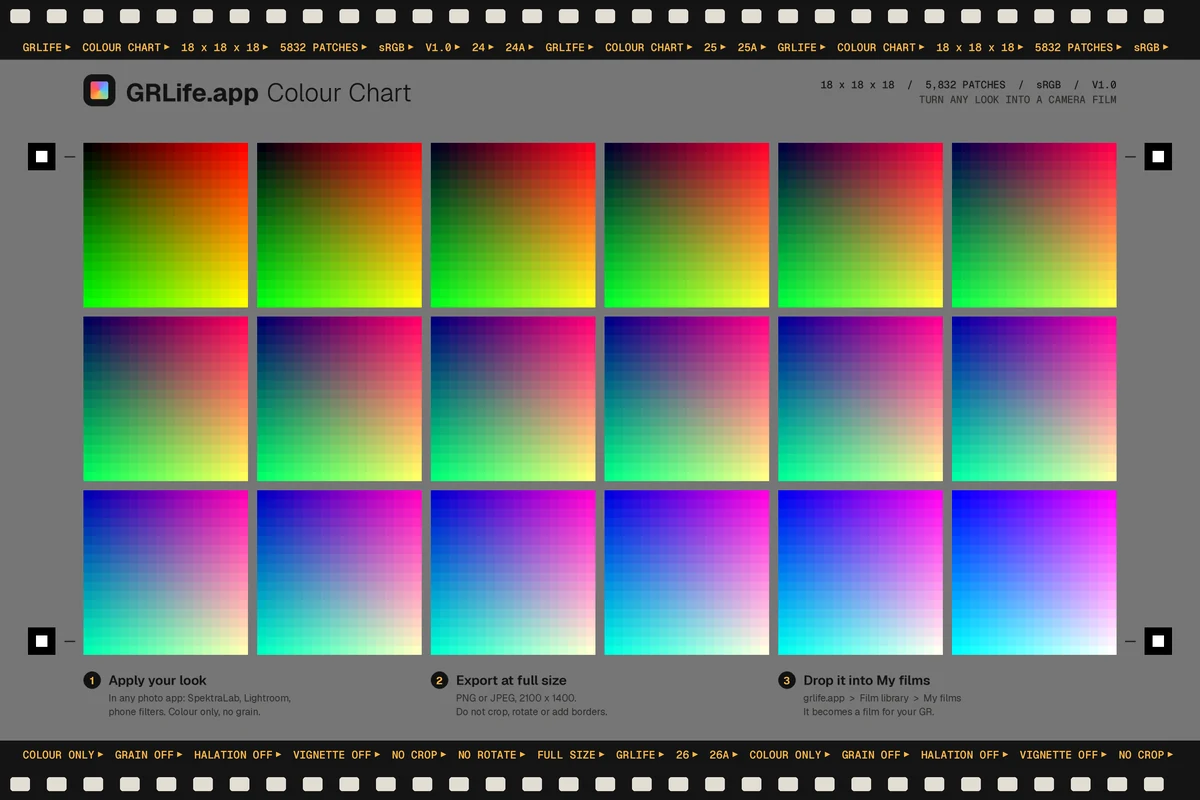
These are one path: flash custom firmware with GRLife Pro first; only then can you use the film library, My films and the shutdown screen.
Topics
Date stamp on Ricoh GRHDR photos on Ricoh GRGrain effect on Ricoh GRRicoh GR freezes: live view freeze troubleshootingRicoh GR IV vs GR IV HDFGRLife vs GRKitLive Photo Export
Curious how this works?
The how-it-works article explains how the files are made, why an internet connection is needed, and the risks and limits of each path.
Read how it works →