
Recipes
Pick your recipes. Take them into the camera.
Choose from the community recipes, or make your own. Put one recipe file on the SD card, pick a recipe in the camera, and it goes straight into a Custom Image Control: the Image Control with its parameters, the white balance and the corrections in one step, with no reflash.
Instructions
From the web to the camera in four steps.
- Pick or make recipes
In the library above, tick the recipes you want in the camera; you can also make, change or import your own. Open one to see its preview first.
- Put the recipe file on the SD card
Download RECIPES.TXT and put it in the GRLIFE folder on the SD card; keep the file name. A download from the firmware store already has your recipe file in SD/GRLIFE.
- Choose one in the camera
Press OK on the shooting screen to open GRLife Pro, then go to Features → Recipes. Up and down choose a recipe, left and right choose the Custom slot to write to; the right side lists everything the recipe holds.
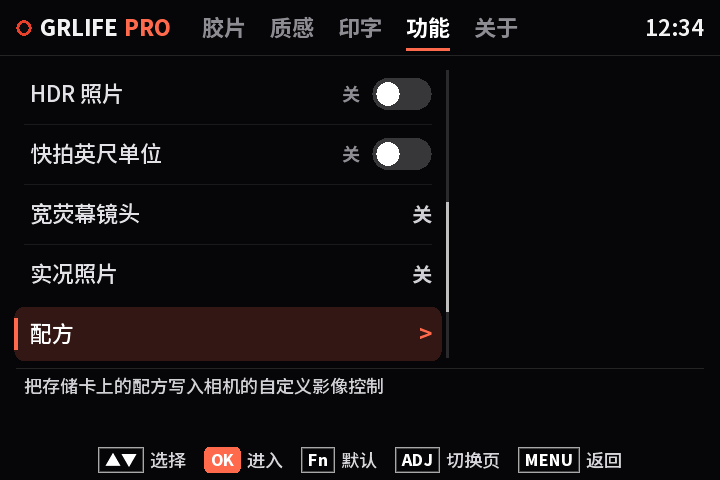
- Press OK to write, then shoot
The recipe goes into the Custom slot you chose and the camera switches to that slot. In the list the recipe gets a mark such as C1 or C2. Items shown in orange (the ISO limit or exposure compensation, for example) are not written; set them on the camera if you want them.
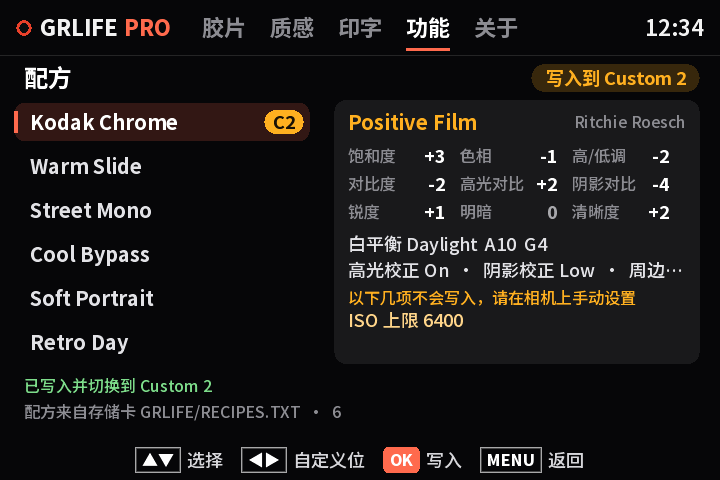
Drawings of the in-camera screen, made by the app’s own drawing code; not photos of a camera.
A recipe is written into a Custom slot of the camera’s Image Control (Custom 1 and 2 on the GR III / IIIx; Custom 1, 2 and 3 on the GR IV). What that slot held is overwritten and not kept. To keep your present settings, write to the other Custom slot. Standard, Positive Film, Negative Film and the other Image Controls are not changed.
FAQ
What does a recipe replace in the camera?
Only the Custom slot you choose; what it held is overwritten. The other Image Controls stay as they are. The white balance with its shift, highlight correction, shadow correction, peripheral illumination correction and high-ISO noise reduction are camera-wide settings; those a recipe holds are changed with it.
Do I reflash to change recipes?
No. Once the camera runs GRLife Pro 2.x, changing recipes only means replacing RECIPES.TXT on the SD card. If the Features page has no Recipes row, download again from the firmware store and copy the new GRLPRO.GRP into the GRLIFE folder.
Does the last recipe leave settings behind?
No. Parameters a recipe leaves out are written with their defaults; a white balance or correction the last recipe changed and this one leaves out goes back to its default too.
Why are ISO and exposure compensation not written?
They follow the scene, not the Image Control. The camera shows the recipe’s suggested values in orange; set them by hand for the light you have.
Is the preview the same as the camera’s picture?
The preview computes colour and tone from the camera firmware’s own parameters; it is a model, not a camera shot. Clarity, sharpness, shading, grain and a few others are not shown, and the white balance shift is an approximation from measured data; under every preview the page names what is not shown and what is approximate.
Where are my own recipes kept?
In this browser while you are signed out; on your account once you sign in, so they follow you to other devices.
Does it work with 1.x firmware?
The recipe file needs the in-camera screen of GRLife Pro 2.x. With 1.x firmware, recipes are still built into the firmware in the firmware store.