
Turn your own LUT into a camera film
Upload a .cube LUT, or give the GRLife colour chart to any photo app and apply your look. Seconds later it is a film your Ricoh GR III / IIIx can shoot with directly: preview it, adjust it, name it, save it to your account and put it in the camera with the film library.
What you need
Making films and saving them to your account is free; you only need to sign in to a GRLife account. To put them in the camera you also need two things:
- Custom firmware with GRLife Pro built after 18 October 2026, flashed on the camera (GR III 2.10 / 2.20 / 2.21, GR IIIx 1.60 / 1.70 / 1.71). Older firmware does not recognise “My films”; build and flash it once more.
- A GRLife film pack opened for this camera (any camera that can download the full film collection qualifies).
Three kinds of source work
.cube LUT
Look LUTs meant for ordinary photos (sRGB / Rec.709); the usual 17³, 33³ and 65³ sizes all work. Log or wide-gamut conversion LUTs do not. sRGB LUTs exported from spektrafilm have their film and print stock names recognised automatically.
GRLife colour chart
Use it when you have no .cube: download the chart, apply a filter, preset or film look in any photo app, export it as PNG or JPEG at its original size and upload it back.
Hald CLUT
Standard Hald CLUT images (such as the PNGs in RawTherapee film packs) can be uploaded as they are, with no conversion.
No uploads
LUTs and charts are read and converted only in your browser. Your account stores only the resulting film parameters, the name and the icon.
Make a film
-
Upload
Open “My films” and drop a .cube, chart or Hald CLUT on the page. Your browser converts it into the camera’s film parameters, usually in 5 to 15 seconds, with a progress bar showing each step.
-
Compare
Check the camera result with the slider or side by side: four reference photos are built in, or use your own, and you can zoom to 100% for detail. The page shows how close the conversion is to the original LUT.
-
Adjust
The basic controls are strength, warmth, tint, saturation, contrast and fade; the Colour page adjusts hue and saturation separately for 12 hues. Every adjustment acts directly on the camera parameters, so what you see is what the camera shoots.
-
Name and save
- The name is taken from the file name; the name shown in the camera is at most 12 Latin characters. The icon is generated from the film’s colours, and you can change its colours and lettering.
- Save it to your GRLife account: up to 8 films per account, and you can keep editing them later.
- Tick “My films” when you download the film library; they appear at the top of the My LUT+Classic group on the camera’s film library screen.
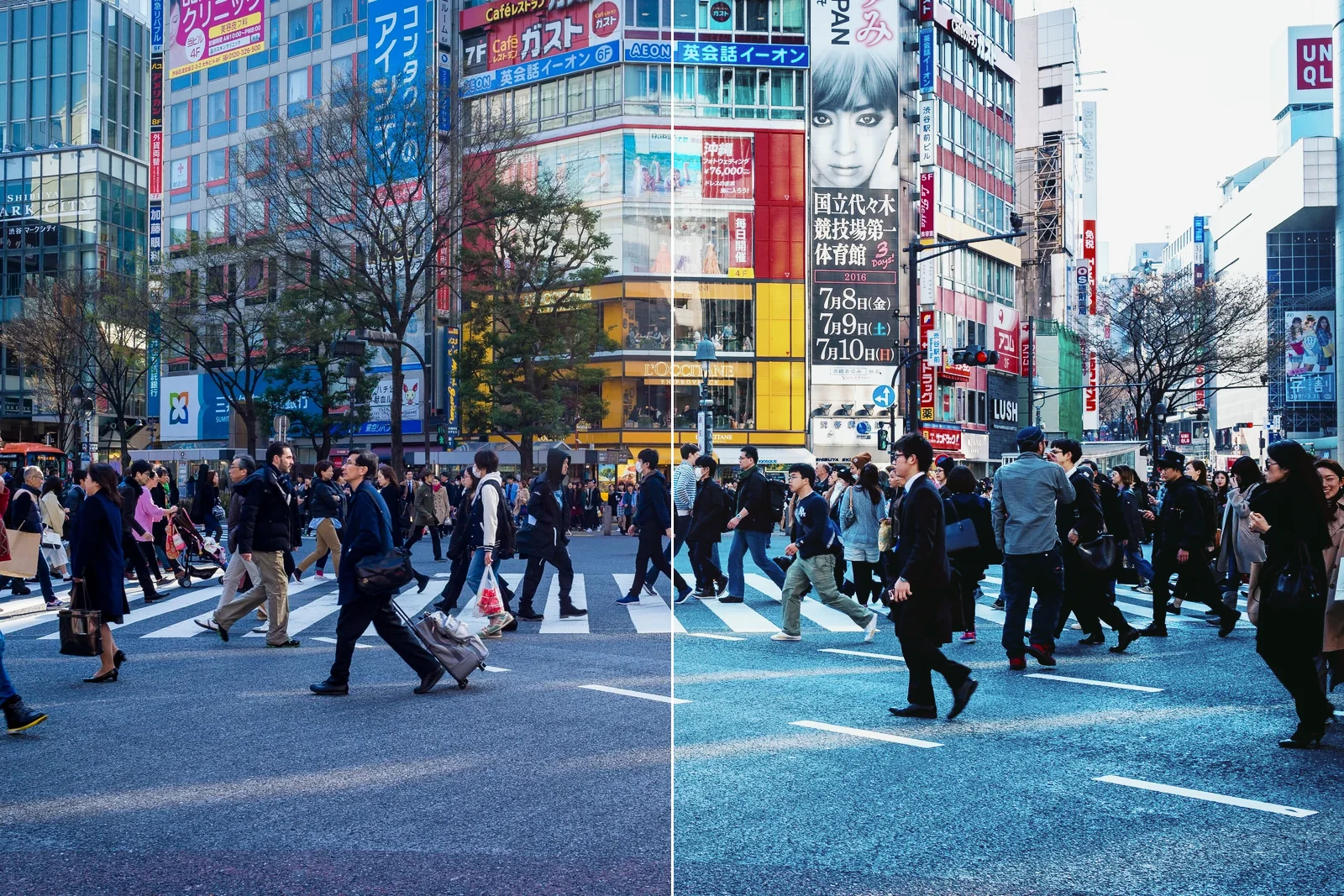
Make a film from a colour chart
Many photo apps, on desktop and phone, cannot export a LUT, but all of them can process an image. The GRLife colour chart has 5,832 patches; once the app has processed it, the new colour of each patch is the look’s “answer”, and reading them back gives the page a complete LUT.
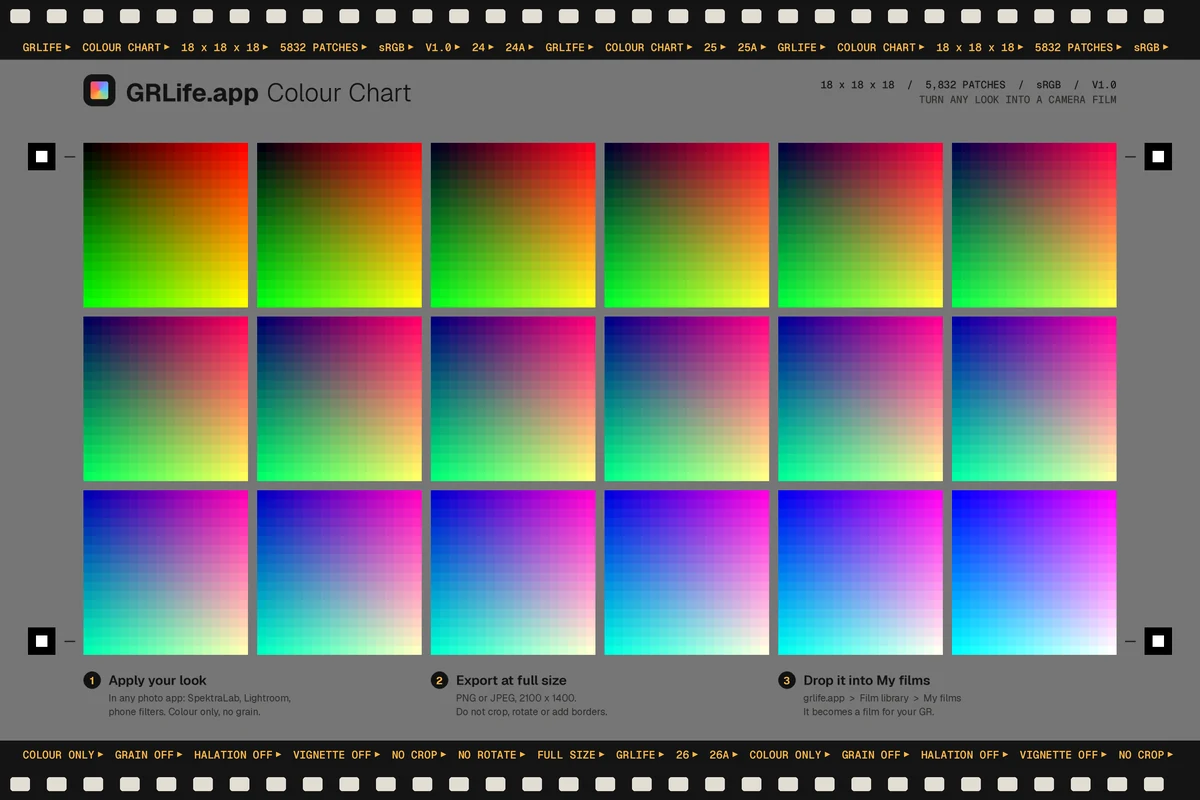
Download the chart
On the “My films” page, click “Download the GRLife chart”; the zip holds the chart PNG and instructions in your language.
Apply your look
Open the chart in your photo app and apply a filter, preset or film. Colour only: turn off grain, halation, vignetting, sharpening and light leaks; they smear the patches.
Export at original size
Export as PNG or JPEG. Do not crop, rotate or resize, and do not add a border or watermark.
Upload it
Drop the exported image on “My films”. The page warns you if the chart is unchanged, too grainy, or brightened or darkened overall.
FAQ
Does the camera match the original LUT exactly?
Very close, but not point for point. A camera film is made of a colour matrix, three tone curves and 12 hue sectors; the page finds the set of parameters closest to the original LUT and shows how close it is. Extreme LUTs (keeping only one colour, for example) differ more.
What about grain, halation and light leaks?
These effects vary across the frame, so they cannot go into a LUT and should not be applied to the chart. Turn on grain, HDF diffusion, film softness and light leaks separately in the camera’s GRLife Pro menu when you shoot; they are layered on top of your film.
Does it cost anything?
Making films and saving them to your account is free. Putting them in the camera needs a GRLife film pack opened for that camera; once it is, the full film collection downloads together with your films.
Are my LUTs or photos uploaded?
No. LUTs, charts and the photos you compare with are processed only in your browser; your account holds only the converted film parameters, the name and the icon.
Is the GR IV supported?
The GR IV is open as a GRLife Pro 2.x Beta, and My films also works on a GR IV with GRLife Pro.
Read next
For downloading the film library, copying it to the SD card and swapping films on the camera, see the film library guide; SpektraLab users have a guide of their own.