
HDR photos straight from your GR, on film slots
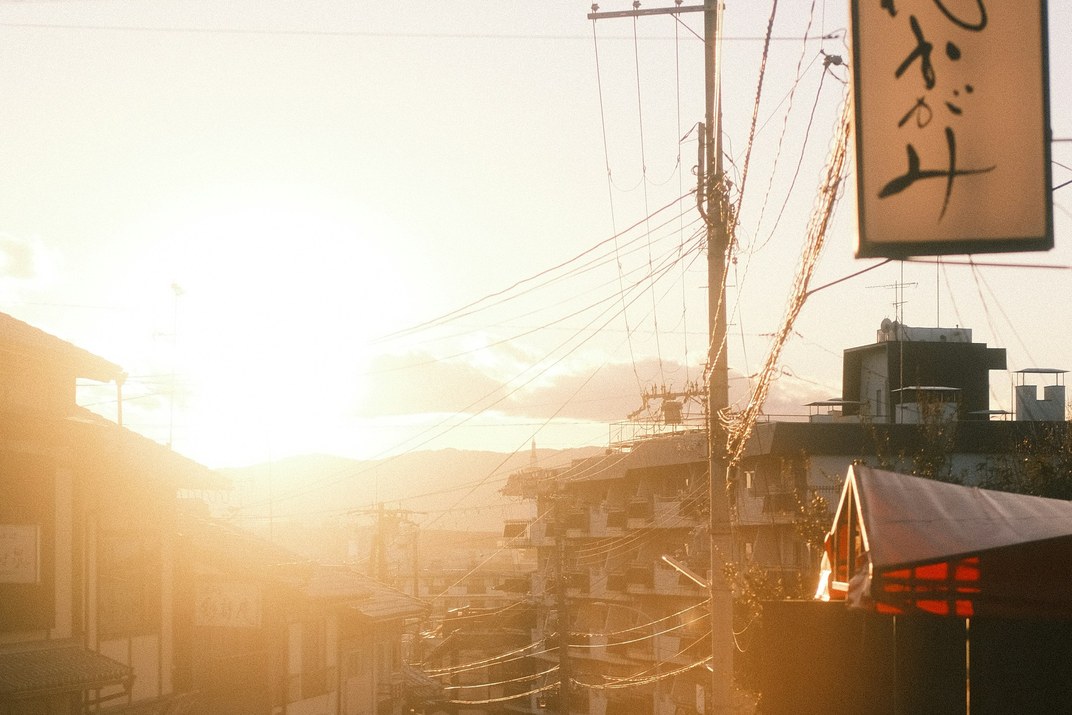
HDR photo is a new feature you can add on the custom firmware page (GRLife Pro is needed as well): photos taken on the film bay’s film slots get an HDR gain map with every JPEG (Ultra HDR / ISO 21496-1). On HDR screens such as iPhone, Mac, Android 14 or later and Chrome, highlights like lights, sky and screens look brighter and more detailed; ordinary screens and apps without HDR support show the photo as before.
What’s new
- Every JPEG taken on a film slot carries an HDR gain map (Ultra HDR / ISO 21496-1).
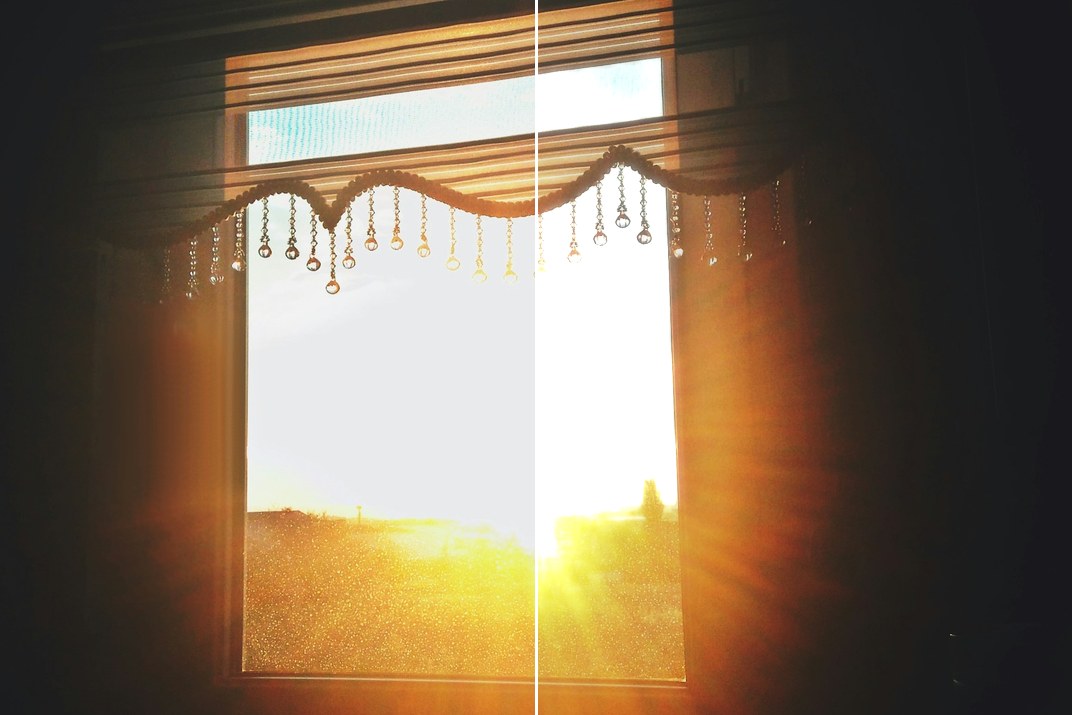
- On HDR screens such as iPhone, Mac, Android 14 or later and Chrome, highlights like lights, sky and screens look brighter and more detailed; ordinary screens and apps without HDR support show the photo as before.
- The gain map comes from the RAW highlights before development and brightens only the highlights, so the film’s colours and tones stay as they are.
- Photos taken with the stock image controls are not changed; RAW-only shots have no JPEG, so no gain map.
- Each JPEG grows by about 50–300 KB, and processing after each shot takes about 0.7 s longer.
On an HDR screen
One photo in two halves: on the left as an ordinary screen shows it, on the right as an HDR screen does, with the light outside the window brighter and the shadows unchanged.
Switch it in the camera menu
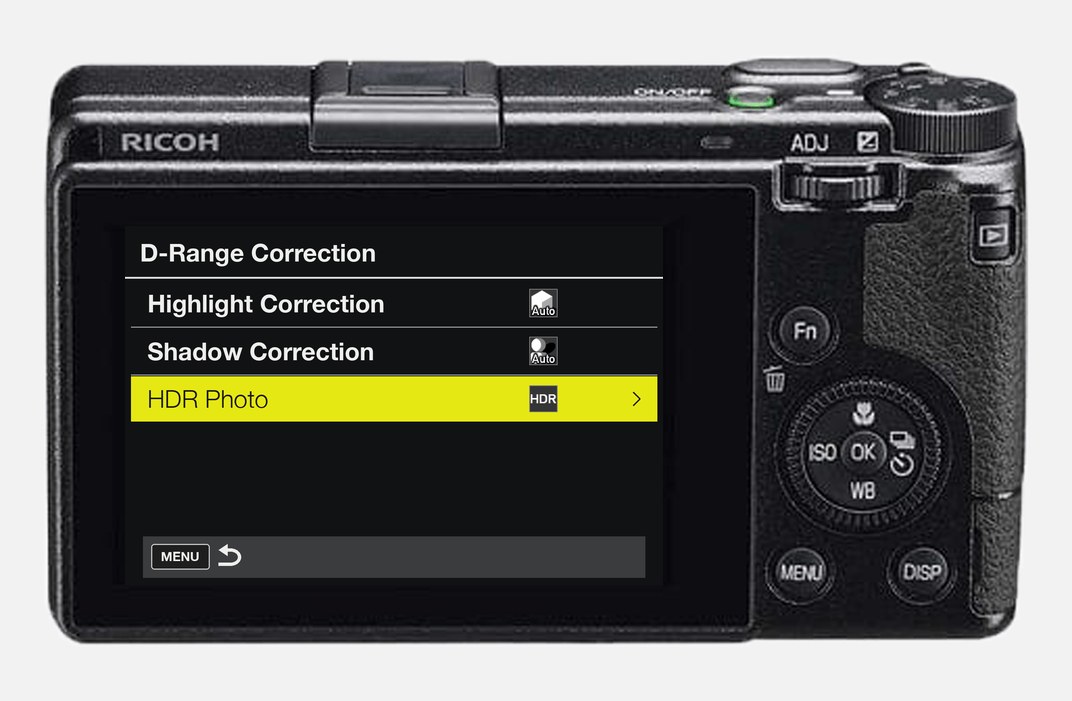
Still Image Settings → D-Range Correction → HDR Photo. The row switches between HDR and OFF and ends with the camera’s own HDR / OFF icon; the setting is kept at power off.
Getting started
- Open the firmware store, add HDR photo (GRLife Pro is needed as well), generate a new firmware and install it as before.
- In the camera menu, turn on Still Image Settings → D-Range Correction → HDR Photo, and shoot on a film slot.
Good to know
- Supports GR IIIx 1.60 / 1.70 and GR III 2.10 / 2.20; confirmed on a GR IIIx with 1.70. Not yet tested on a GR III.
- Works on film slots only; for ordinary photos, set HDR Photo to OFF.
- Installing unofficial firmware carries risk: keep the stock firmware so you can go back.
This post was first sent by email to GRLife users. To get the next one, sign in and turn on email notifications in Account settings.