
GRLife Pro v1.30: make the shutdown screen your own photo
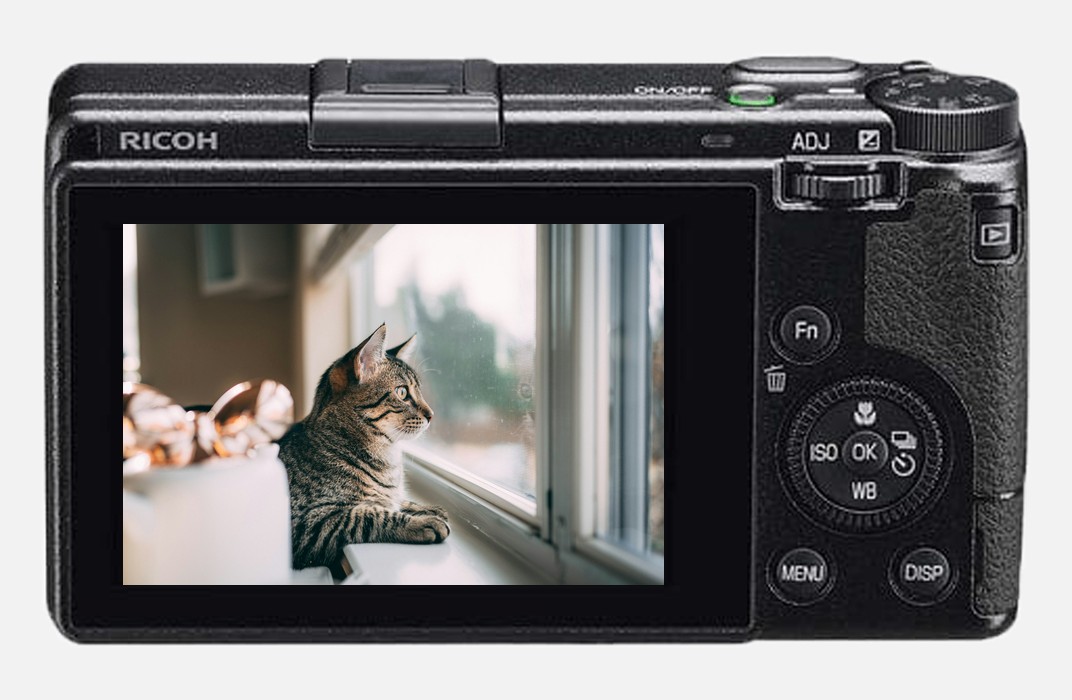
Every time a GR switches off, it shows the same factory screen. GRLife Pro v1.30 adds a Shutdown screen page to the menu: make up to 9 photos into shutdown screens at grlife.app, put them on the SD card, pick one in the camera, and it shows when you switch off.
What’s new
- On the Shutdown screen page at grlife.app, choose photos and drag to frame them, up to 9 at a time. A built-in screen, The last frame, is included.
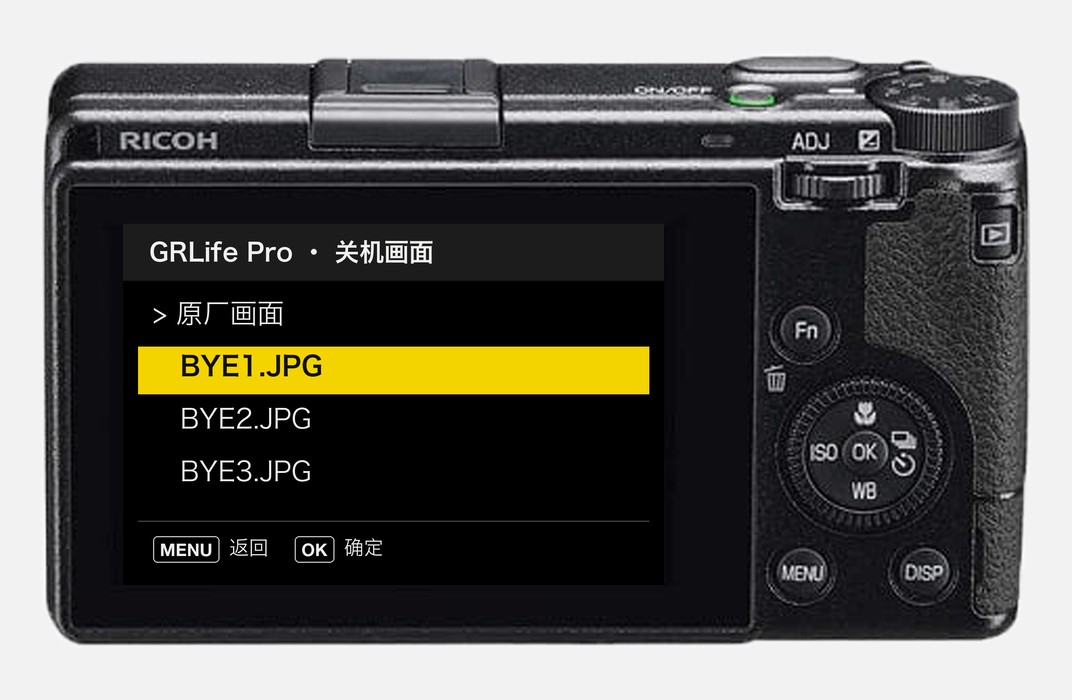
- In the camera, press MENU → still image settings → GRLife Pro → Shutdown screen, pick one and press OK: it takes effect at once.
- The chosen picture is stored in the camera, so it still shows without the SD card.
- To go back to the factory screen, choose Factory screen on the same page.
- Your photos are processed in the browser and never uploaded.
The Shutdown screen page in the camera
The row starting with “>” is the screen in use; move to a picture and press OK to switch to it.
Getting started
- Generate a new firmware in the firmware store and install it as before. Open MENU → GRLife Pro → Info: when the second line reads v1.30 you are on the new version.
- Make your shutdown screens on the Shutdown screen page at grlife.app and download them. Copy the GRLIFE folder from the SD folder in the ZIP to the root of the SD card; if the card already has a GRLIFE folder, copy only the BYE folder into it.
- In the camera, open GRLife Pro → Shutdown screen, pick one, press OK, and switch off to see it.
Good to know
- Supports GR IIIx 1.60 / 1.70 and GR III 2.10 / 2.20; confirmed on a GR IIIx with 1.70.
- The old web tool (the debug script) has been retired. On a camera where it replaced the shutdown picture, Factory screen shows that replaced picture.
- Installing unofficial firmware carries risk: keep the stock firmware so you can go back.
Open the firmware store · Full release notes
This post was first sent by email to GRLife users. To get the next one, sign in and turn on email notifications in Account settings.