
Custom firmwareCore feature
GRLife Pro
Swap films from the SD card in the camera, with grain, diffusion and an imprint (date and caption).
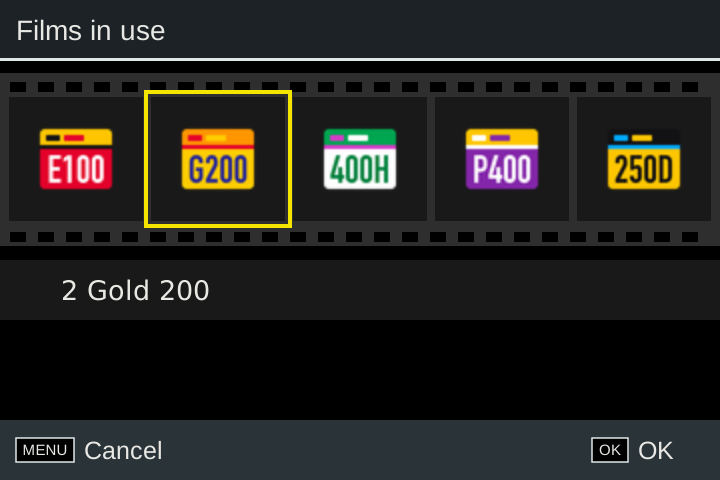
- Five film slots; change films any time from the camera menu
- Grain, diffusion, light leak and imprint
- Five built-in films that work without an SD card
Film, texture and imprint each have a page in GRLife Pro in the camera.
What it does
- Load film: five slots; load any film from the library on the SD card, from the camera menu
- Five built-in films: they work without an SD card
- Grain: fine or coarse in the Fujifilm X half manner, or classic (following the film), each off, low, medium, high
- Diffusion: off, low, medium, high
- Films in video: the five films work for video too (colour only, no grain or diffusion)
- Imprint: date, caption and film name in seven-segment or dot-matrix type; colour, glow, position and size are set in the camera
- CineStill halation: off, low, medium or high on CS films
- RAW development: Fn sets the textures and imprint for one in-camera development
- Light leak: a glow (20 light patterns) or a first-of-the-roll burn, different on every photo
After flashing, download the film library file too
With the firmware alone the camera has only the five built-in films. To load other films, download the film library file (FILMS.GRF) from the Film Library page and save it to the SD card; only then can you change films in the camera.
- After flashing, press MENU, go to the GRLife Pro menu under Still Image Settings, and find the device code under Info.
- On the film library page, enter the device code, choose films and download the film library package.
- Unzip it, put FILMS.GRF in the GRLIFE folder on the SD card and start the camera once with the card in: the camera keeps its own copy.
Requirements and limits
- GRLife Pro takes the Cross Processing slot, so that slot can no longer hold a recipe; the other recipe slots work as usual.
Testing status
Verified on a camera; still keep the stock firmware so you can flash back.
FAQ
Does it work if I flash the firmware but skip the film library?
Yes. The camera has five built-in films, and grain, diffusion and imprint all work; to load other films, download FILMS.GRF from the Film Library page.
Can I use the film library file on another camera?
No. The film library file is bound to the device code and works on that camera only; for a different camera, download it again with the new camera’s device code.
Why are films shown in grey with a padlock?
It means the file was issued for another camera; download it again with this camera’s device code.
What should I do when the film library is updated?
Download it again on the Film Library page, replace FILMS.GRF in the GRLIFE folder on the SD card, then insert the card and power on once.
Does it work with recipes?
Yes. GRLife Pro takes the Cross Processing slot, so that slot can no longer hold a recipe; the other recipe slots work as usual.
Custom firmware, test version · The result is unofficial firmware and flashing carries risk; back up first and keep the official firmware.
Other features
- HDR photosEach JPEG carries an HDR gain map, so highlights look brighter and more detailed on HDR screens.
- Live photosWith every photo, the camera also saves a short silent clip from just before and after the shutter; once exported, it is a photo that moves in your phone’s library.
- Recipes (parameters)Preset nine parameters on the stock image controls; the stock looks stay, and one or two slots is fine.
- More aspect ratiosAdds five aspect ratios: 7:6, 5:4, 4:3, 16:9 and full-width 65:24.
- Half frameTwo portrait shots become one 3:2 photo with a black line between them, just like a half-frame film camera.
- Golden ratio guidesAdds a golden ratio grid and golden spirals in four directions to the camera’s own grid style menu.
- Rail levelThe level becomes two rails; the camera is level when the dot sits in the ring and turns green.
- Anamorphic lensWith a 1.25× or 1.20× anamorphic widescreen lens mounted, live view and photos are desqueezed in the camera into a wide frame with normal proportions.
- Nine ADJ settingsADJ Mode Setting grows from 5 to 9 settings, and the ADJ strip shows them all at once.
- Rear dial sets ISOTurn the rear dial (the ring around the four-way controller) to change ISO directly while shooting, without pressing the ISO key first; below the lowest ISO is AUTO.
- Snap distance in feetThe snap focus distance reads in feet: in the menus, on the shooting screen and in ADJ, 2.5m shows as 8ft.