
New: My films — turn your own LUT or filter into a GR film
The film library now has My films: upload a .cube LUT, or run the GRLife colour chart through any photo app (SpektraLab, Lightroom, phone filter apps…), and in about 5–15 seconds your browser turns it into a film your Ricoh GR III / GR IIIx can shoot with. Preview it, adjust it, name it, save it to your GRLife account and load it with the film library.
 Harbour Fade
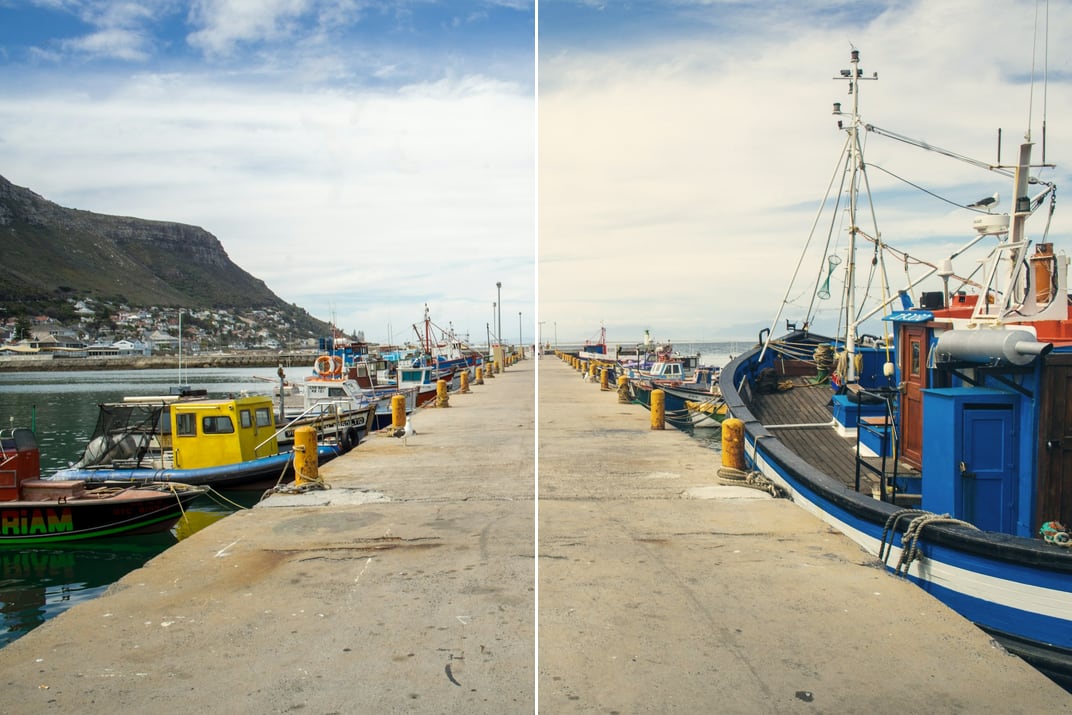
Three ways in
- .cube LUT: A look LUT made for ordinary photos (sRGB / Rec.709).
- GRLife colour chart: Download it on the My films page (a zip with the chart PNG v1.0 and a readme in your language). Apply a filter, preset or film look in any photo app, export at full size and upload it.
- Hald CLUT: A standard Hald CLUT image (RawTherapee’s film packs, for example) uploads as it is.
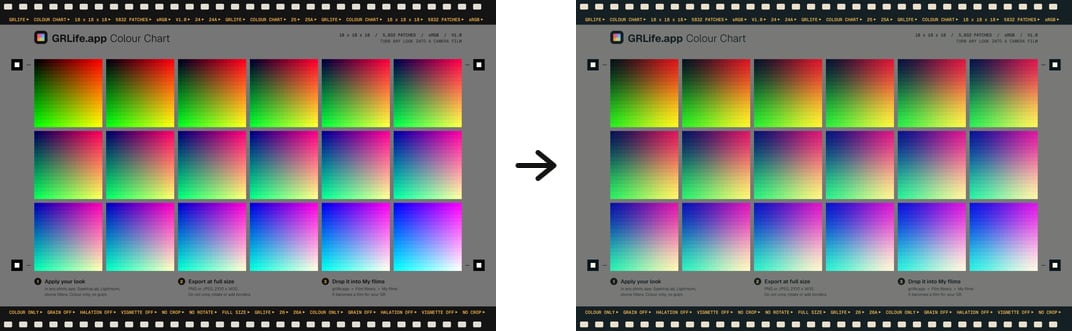
Your files never leave your browser: LUTs, charts and comparison photos are processed on your computer. Your account keeps only the film settings, its name and its icon.
Four steps to a film
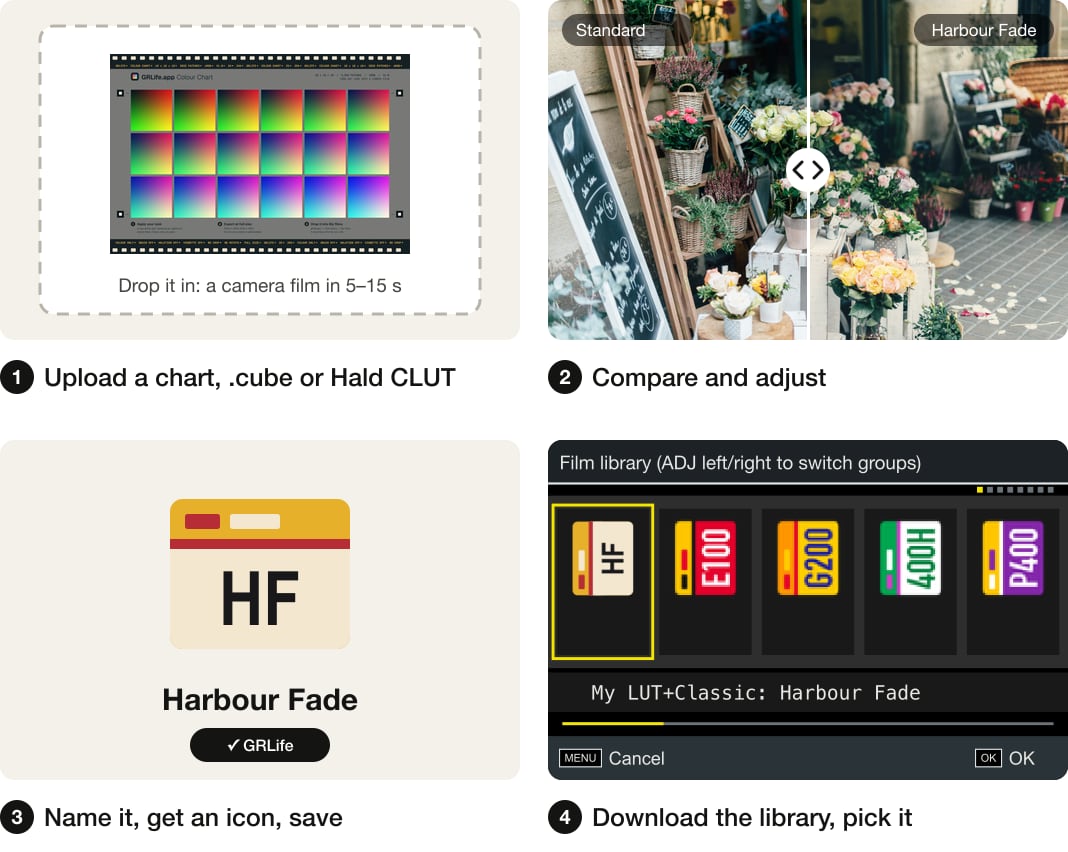
- Upload: Your browser converts it into a camera film (a colour matrix, three tone curves and 12 hue sectors) and shows how close it gets to the original.
- Compare and adjust: Use the slider or side-by-side view on four reference photos or your own photo, zoomed to 100 % if you like. Adjust strength, warmth, tint, saturation, contrast and fade, and the hue and saturation of each of 12 hue sectors.
- Name and save: The camera shows up to 12 English characters; the icon is drawn from the film’s colours, and you can change its palette and label. Save up to 8 films to your GRLife account and edit them later.
- Into the camera: When you download the film library (FILMS.GRF), tick My films: they come first in the My LUT+Classic group of the camera’s film library.
Grain, HDF diffusion, film softness and light leaks in the camera’s GRLife Pro menu still layer on top of your films.
Using SpektraLab?
We tested it with SpektraLab 1.3.4: open the chart PNG and pick a film and print; under Film Format turn off Grain, Halation and Glare; set Metering (Input / Camera) to Custom and keep Film Exposure at +0 (auto metering makes the result too bright or too dark); export as “PNG 8-bit — sRGB”.
GRLife is not affiliated with SpektraLab. SpektraLab is a trademark of its owner.
What you need
- Making films and saving them to your account: free with a GRLife account.
- Putting them in the camera: GRLife Pro custom firmware generated after 18 October 2026 (GR III 2.10 / 2.20, GR IIIx 1.60 / 1.70; if yours is older, generate and flash it again), and a GRLife film pack opened for that camera (any camera that can download the full film collection).
If you own the GRLife Pro Film Collection, your films download with the film library at no extra cost.
This post was first sent by email to GRLife users. To get the next one, sign in and turn on email notifications in Account settings.